| Please read our Legal Disclaimer prior to executing any steps in this article |
Overview
Denso RC5 & RC7M JX Encoder System Down Failure
Failed to read the encoder information of the corresponding axis.
The Denso RC5 & RC7M series error JX encoder system down failures aren't uncommon errors in the RC5 and RC7M series controller, but they are serious (level 5 errors). While the error resolution is straightforward, the error is significant and can generally be avoided by performing routine maintenance. To resolve the error the affected encoders must be reset robot followed up by a calibration. Recalibration may result in the need to reteach positions which depending on the application can be a time-consuming task.
Possible errors:
6411 - J1 encoder system down failure
6412 - J2 encoder system down failure
6413 - J3 encoder system down failure
6414 - J4 encoder system down failure
6415 - J5 encoder system down failure
6416 - J6 encoder system down failure
6417 - J7 encoder system down failure
6418 - J8 encoder system down failure
- Affects all DENSO RC7 and RC5 series robot controllers.
- This error is typically caused by loss of power to a motors encoder. Generally it is dead batteries in the robot which cause the errors.
- The encoder backup batteries supply 3.6v to the encoders which is what maintains the reference position in each motor.
- The reference position in the encoder is what the calset references. A loss of a reference means the calibration data has been lost.
- This is a level 5 error, which will inhibit robot operation until resolved.
- This error will persist after a reboot, until the root cause is resolved.
Symptoms
Common and related Symptoms:
- 27A6 Error occurs during any attempt to power on motors in manual or automatic modes.
- Robot will display 641X error either on the pendant or in the error log. Its not uncommon to see this error generating for each joint in the robot because this error is frequently generated because the batteries have expired and all of the batteries power all of the joints. The full list of generated errors should be checked in the Error Log. The Encoder information screen can also be checked to determine if the encoders are generating the 641X error.
- Robot will not run in manual, or auto mode.
- RC7 Robot 'error' led warning light, and/or the Robot error output signal are on - indicating error(s) are present on the robot controller.
- See "Additional Resources" section below for help on this topic
- Please note, if you are running with no pendant and need to hook up a pendant to determine the error code, please ensure to power the system down, prior to removing the dummy plug, and connecting a pendant.
- Depending on your configuration, your system may also be capable of outputting the RC7 Robot error code to the cell's PLC (if applicable).
- See "Additional Resources" section below for help on this topic
- See "Additional Resources" section below for help on this topic
Possible Causes
Dead encoder backup batteries
641X errors will occur if the encoder backup batteries aren't changed on the standard 2 year schedule. The encoders reference position is maintained by having continuous voltage applied and low / dead batteries result in loss of its position. Confirm the batteries are outputting 3.6V by using a multimeter.
A motors encoder is disconnected from the internal wiring harness, or power conversion board is disconnected from the harness
- For the same reason dead batteries cause 641X errors, disconnecting a motors encoder from the robots internal wiring harness or disconnecting the power conversion board from the harness will also cause 641X errors. The lack of voltage from the encoder backup batteries is what causes the encoder to lose its reference position.
A new motor is installed in the robot arm
- A 641X error will generate if a new motor is installed in the arm. A new motor has not had a continuous voltage on applied to the encoder which means the encoder does not have a reference position that can be used for a calibration.
Solution
Step 1 Press [F2 : ARM] | 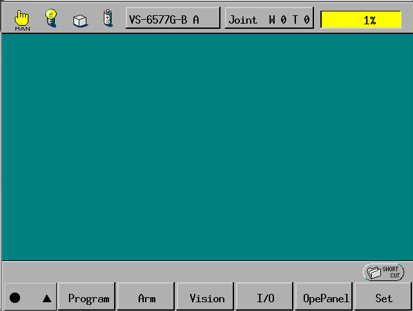 |
Step 2 Press [Shift] | 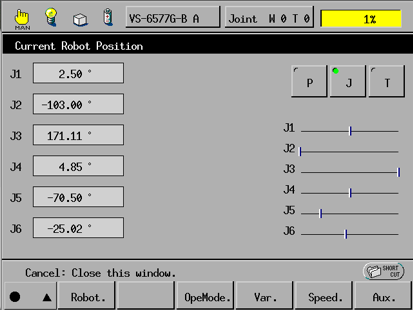 |
Step 3 Press [F6: Maintenance] | 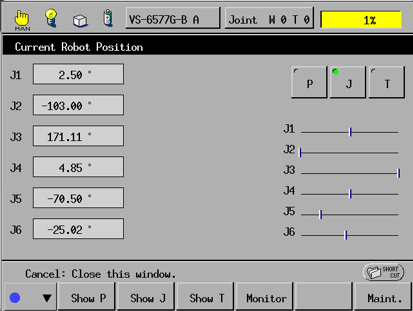 |
Step 4 Press [Enc Inf.] | 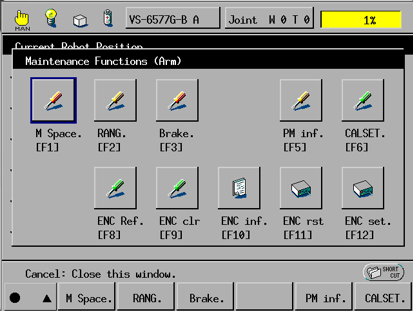 |
Step 5 Identify the joints affected by the Encoder System Down Failure by checking the System Status column. Make note of the affected joints. Push [Cancel] to back out of this screen. | 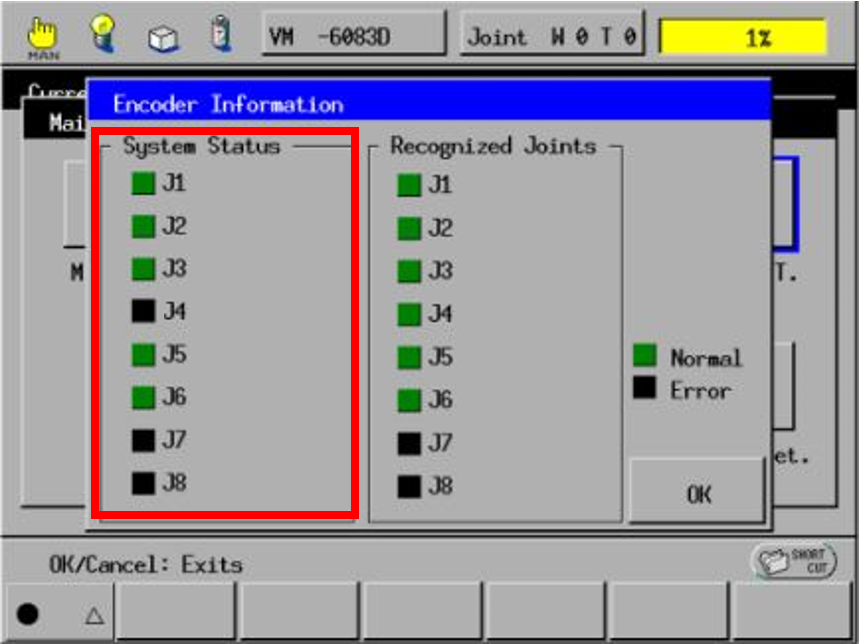 |
Step 6 Reset the encoders for the joints identified in step 5 | Procedure for resetting the encoders |
Step 7 Cycle power on the controller. Be sure to leave the controller off for 6 seconds before powering on. |
If the above method does not resolve the error, it is likely the motor needs to be replaced, or the power conversion board may be damaged. If motors, or the power conversion board are changed please start back at step 1. If the power conversion board is bad, its likely to cause the error on all joints while a bad encoder is likely to cause this error on a single joint.
Verification
After you have performed the steps outlined in the 'Solutions' section, simply try to move the robot via the TP, or via automatic operation. If a 27A6 error longer occurs, you have resolved the issue.
Next Steps
- Calibrate the robot (full article on CALSET)
- Confirm / adjust your applications positions are correct prior to running the robot in automatic mode. minor adjustments may be necessary.
- Extract a Wincaps III backup project form your controller to log the new robot calibration, and the revised positions.
Additional Resources / Related errors
Not executable due to fatal error - 27A6 : Knowledge Base
RC7 Understanding the Error Log : Knowledge Base
For information related to outputting RC7 Robot error warning signal
- Download the 'RC7M' Manuals with the link below
- Unzip the manual pack, and Open the rc7m_inter-e.pdf in the "English" folder
- See section 3.2.6 "Robot Error (output)"
For information related to outputting RC7 error codes to an attached PLC via Fieldbus IO card (Ethernet IP, DeviceNET, etc...)
- Download the 'RC7M' Manuals with the link below
- Unzip the manual pack, and Open the rc7m_inter-e.pdf in the "English" folder
- See section 15.5.1 'Error Number Read'
Need More Help ?
- For additional assistance, contact support@densorobotics.com or visit our online contact form at https://www.densorobotics.com/contact/
Was this article helpful?
That’s Great!
Thank you for your feedback
Sorry! We couldn't be helpful
Thank you for your feedback
Feedback sent
We appreciate your effort and will try to fix the article